
How to signup & activate the trail version
How to sign up?
Step 1 – Fill in details
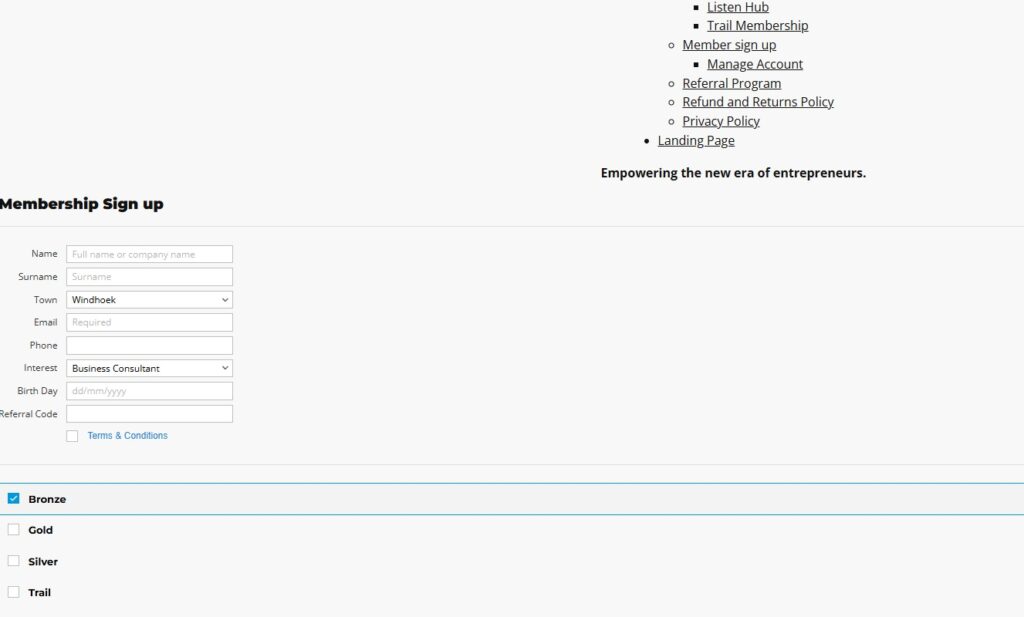
Fill in the form with your personal information.
Select your preferred membership package
Step 2 – Activate Membership

You can tick the box to receive an invoice emailed to you.
By following the payment options, the package will be activated once payment is received.
Once activated, you can head over to the booking hub page to select your preferred day and time for the booking.
The final step is to activate your selected membership; at this point, we will activate the payment to your account and send a confirmation email.
Making a Booking
How to place a booking?
Step 1 – Schedule booking
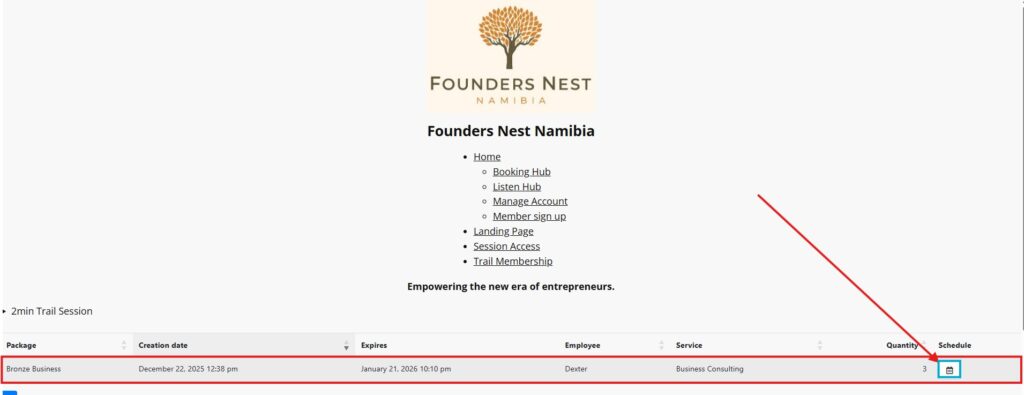
Once your account has been created and payment been linked, you will see the package you have subscribed to in the list. Click on the calendar icon to open the booking screen to select the day and time you would like to have the online session.
Step 2 – Select Date & Time
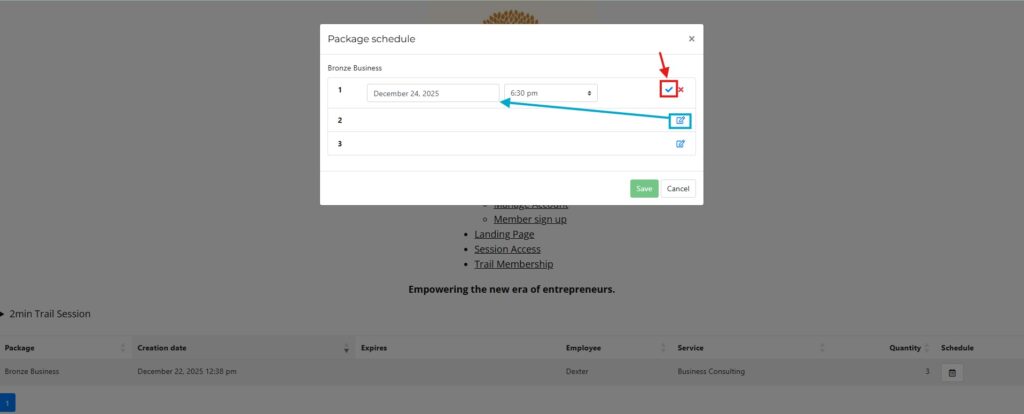
By clicking on the blue pencil icon, you will have the option to choose the date and time. Once this has been selected, you need to accept your selection by clicking on the red indicated icon to close the selection.
This screen will always show if the account is active. If you need to reschedule, cancel a booking, or book a session later within the active month.
Once you have saved the sessions, an email will be sent to the staff for approval. When the approval has been processed, you will receive an email with the booking link. The link is unique to your booking and for one-time use.
Upgrade or Down grading a membership
How to upgrade or downgrade an active membership
Step 1 – Select Upgrade
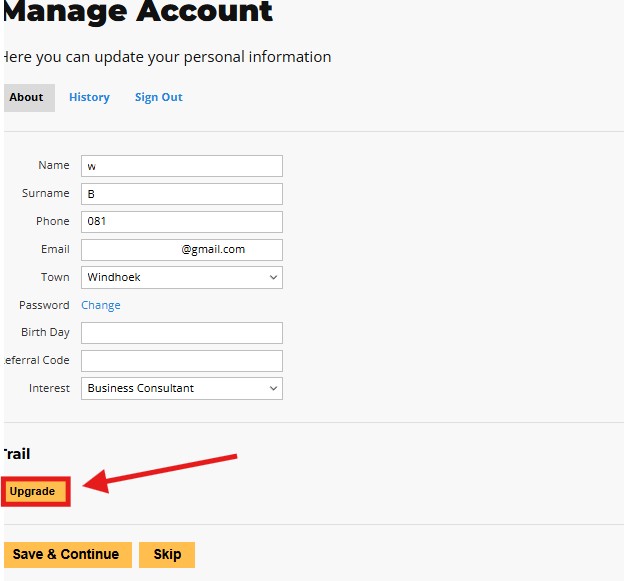
To upgrade or downgrade you can click on the “upgrade” button
Step 2 – Selecting membership
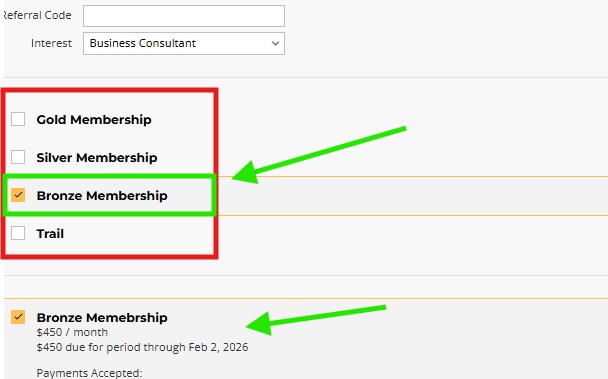
After you select your desired membership and follow the payment methods, your account will be linked and bookings can be made.
Take Note: selecting your membership opens the request for the membership; only after payment has been received will you gain access to the benefits.
Step 3 – Email Invoice & Discount codes
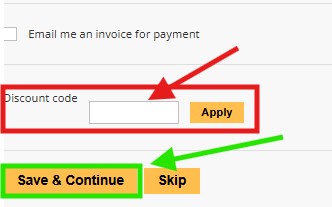
If you tick “Email me an invoice for payment,” you will receive an invoice via your registered email address.
If you have a discount code, it can be entered here, and once you are ready, you click on “Save & Continue” to save your membership upgrade. After you have clicked “Save & Continue,” the staff will receive the request email.
Referral Program
How to refer a friend
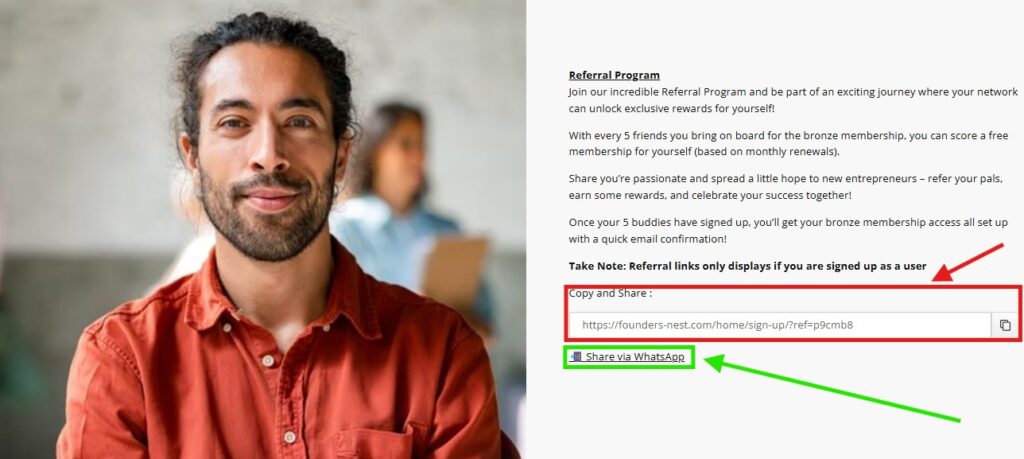
After you have signup you will have your own unique referral code displayed under the referral program page.
2 options to share your referral code
- Copy and paste the website link with your code into an email
- Share via WhatsApp -this will open WhatsApp on your phone and you can select the friends you would like to refer ,
- This only works if they use your unique link to sign up
Starting a session Trail/ Paid membership
How to start a session
Step 1 – After you have followed the steps to “making a booking”
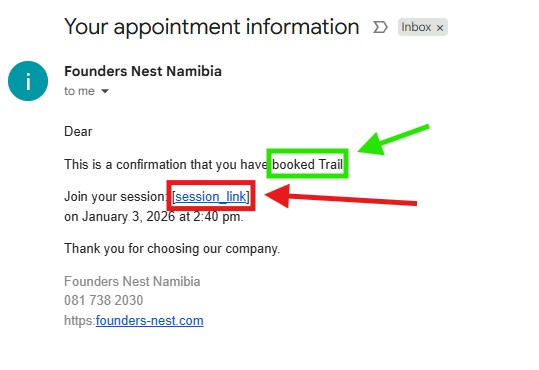
- After your booking has been approved you will receive an email that looks like the image on the left
- The booking type is indicated in the green box
*Take note: Your unique session link will be embedded inside the [session_link],once this is clicked you will be redirected to the page where your session will start ,this can not be reused
Step 2 – Clicking the [Session_link] – redirected to the session page
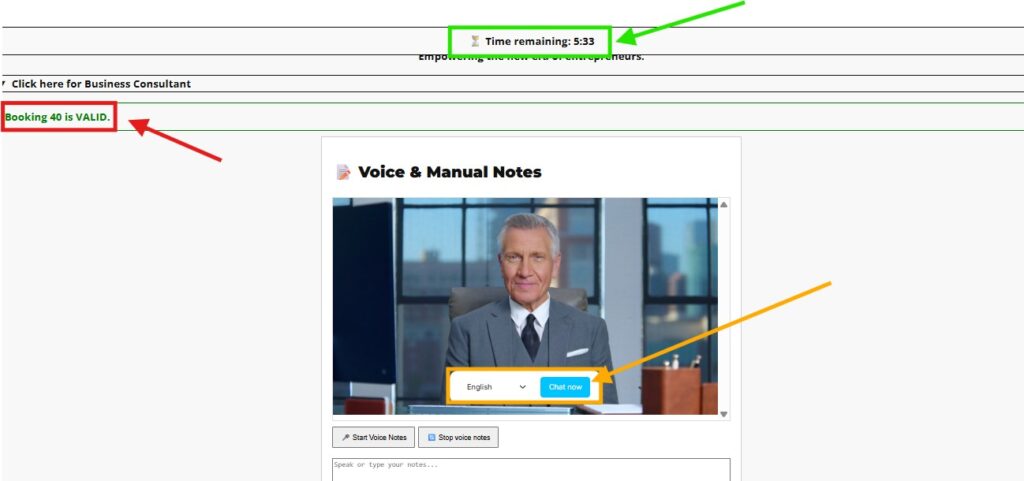
- Once you open and click on the session the timer to end the session will start, your time is displayed on the top of the screen
- Booking ## is valid ,shows that its a verified session
- “Chat Now” needs to be click to start the conversation with the mentor
Step 3 – Making notes and downloading them
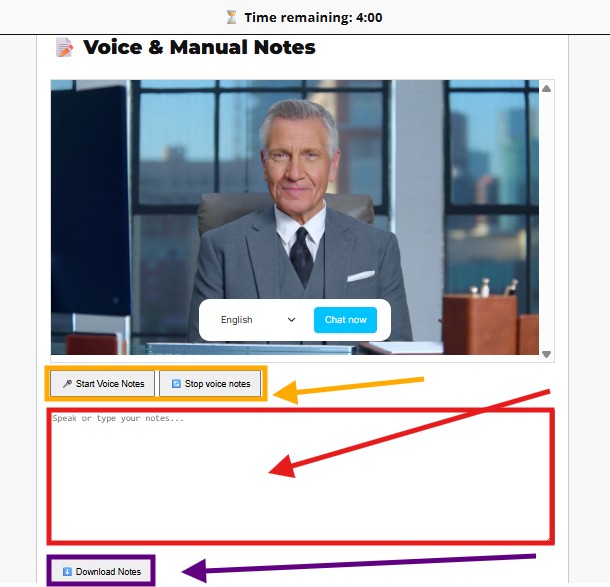
- “Start Voice Notes” & “Stop Voice Notes” is to mute your mic for the mentor to make your own notes through Voice-To-Text into your notes field. You need to click on “Stop Voice Notes” if you want to resume the conversation with your mentor.
- (Voice-To-Text is not available on Apple devices yet, but will be patched very soon. We need to find a way around the security features, but it works on Android phones and Windows computers/laptops.)
- Alternatively you can type your notes into the text box to make notes.
- *Take Note: Please download your notes before the session ends, We can not recover them and they are not saved on our server to keep your business ideas and discussions confidential.

Pages
Company
Information
Designed by Stone Age Marketing